
6 Ways to Fix a Freezing Computer:
This page contains recommendations on what to do if a computer freezes or deadlocks. If your computer has stopped responding, follow the steps below to attempt to get the computer to unfreeze.
Advertisement
Top 9 Reasons “Why Computer Keeps Freezing”
Finding the root reasons of a computer’s recurrent freezing is crucial. Below are the top 9 reasons why Windows 10, Windows 8, or Windows 7 keep freezing.
1. Too Many Programs Opening
Every computer software needs a specific quantity of internal and external (hardware) resources to run. Your computer might not have enough memory or processing capability to accommodate all the programs running at once.
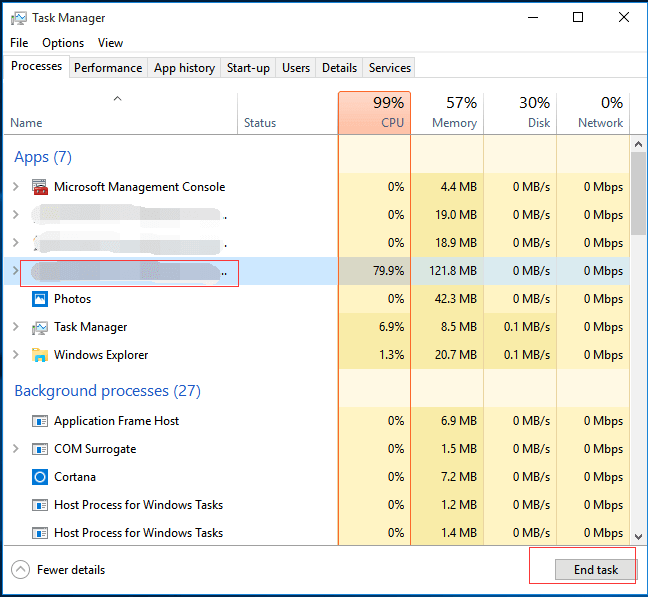
In this situation, you should right-click Task Manager, choose Task Manager, click the Processes, find the program that is frozen and click End Task. It is recommended to run programs you need at a time.
Advertisement
2. Driver Corruption or Errors
Hardware devices and the operating system communicate with one another through drivers. Your Windows may be freezing as a result of outdated or damaged drivers. Thus, you must always ensure that your drivers are updated.
3. Overheating
computer may become slower as a result of too much heat, finally freezing. If the temperature is high enough, it may potentially harm your system processor’s integrated circuit and render it useless.
Please make sure your PC is properly vented to prevent this.
Advertisement
4. Insufficient RAM
If your computer freezes frequently and regularly, you might have insufficient RAM. You can consider upgrading your RAM or reinstalling the operating system to solve this issue.
5. BIOS Settings
The computer may enter freeze mode if the BIOS settings are altered. Your frozen issue might be resolved by performing a default BIOS reset.
Advertisement
6. Faulty External Devices
The computer may freeze as a result of faulty USB or other external peripherals, including the mouse and keyboard. To determine the cause, try connecting one device at a time. To solve the computer continues freezing problem, further try updating the USB device drivers.
7. Computer Viruses
Viruses could also be the main cause for a computer to freeze. You should perform an antivirus check regularly.
Advertisement
8. Corrupted or Missing System Files
According to our investigations, we found that Windows 10 / Windows 7 keeps freezing due to corrupted or missing system files.
9. Software Errors
Any third-party program, regardless of the provider, could be causing your computer to freeze.
Some programs might use a lot of memory in an effort to carry out tasks or access resources that Windows is unable to grasp. Your computer may freeze and get stuck if it can’t manage the stress. You should update all installed third-party applications on your computer to fix this.
Advertisement
There are more causes, such as a faulty memory card, insufficient storage space, etc., in addition to the ones already mentioned. Our main goal is to resolve this issue without altering the original data, regardless of the reason. Let’s now look at how we can resolve this problem while protecting our data.
How to Fix a Freezing Computer
Method #1. Free up disk space on C drive
Windows 10 or Windows 7 will continue to freeze if your C disk is full because that is where the system files are kept.
Therefore, make sure the C drive has enough free disk space. Delete some unwanted files or programs from your C drive if that doesn’t work. Alternately,
Method #2. Update all device drivers to the newest
Users can use Windows Update or the finest driver update program to update their drivers.
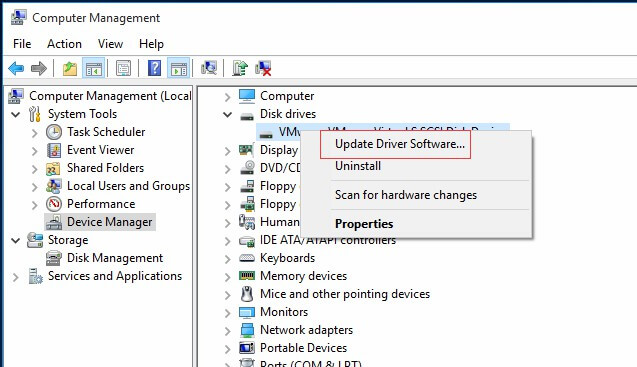
1) Right-click This PC in Windows 10/8 or My Computer in Windows 7, then click on Manage, and click on Device Manager.
2) Open the category that you think contains the device you want to update its drivers.
3) Update drivers depending on your version of Windows:
Windows 10/8 users: Right-click the hardware’s name or icon and choose Update Driver Software…
Advertisement
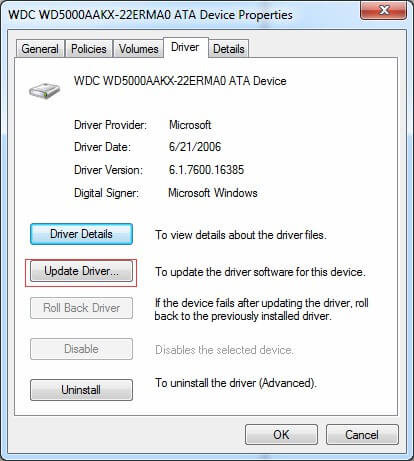
Windows 7 users: Right click on the hardware’s name or icon, choose Properties, and choose the Update Driver… button under the Driver tab.
Related
Windows 11 vs. Windows 10: What Are the Real Differences?
Method #3: Run Memory Check
The procedures listed below can be used to launch the Windows Memory Diagnostics tool if you believe your machine has memory issues:
Press Windows and R keys, type mdsched.exe in the text input box and press Enter.

Advertisement
To check for problems immediately, click Restart now and check for problems (recommended). Note: if you want to check later, click Check for problems the next time I start my computer.
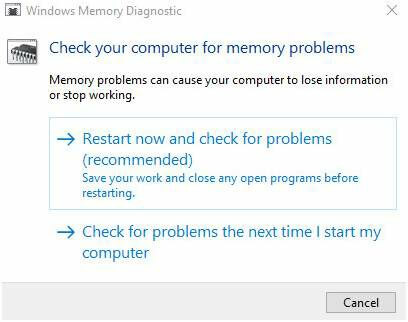
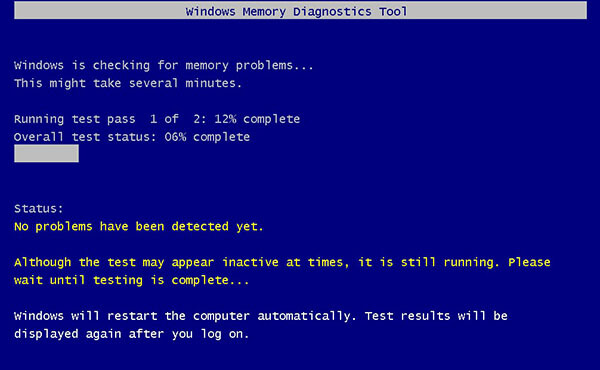
Windows will then restart, and you will get the following window showing the progress of the check and the number of passes it will run on memory. It might take several minutes for the tool to finish.
Advertisement
Method #4: Run System File Checker
In the event that system files are missing or corrupted, you can try the following steps to restore them to solve the Windows 10 freeze issue.
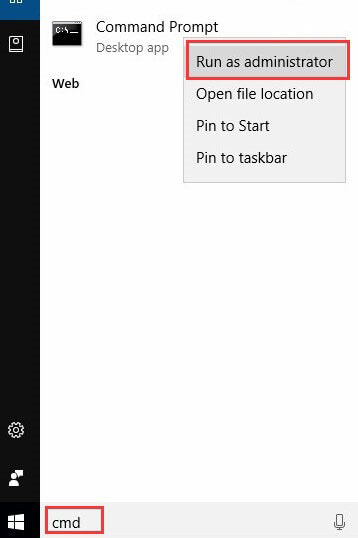
1) Click Start, and then type cmd into the search box. (DON’T press the Enter button!!!).
2) Right-click Command Prompt and choose “Run as administrator” and click Yes.
Advertisement
3) Type sfc /scannow and press Enter.
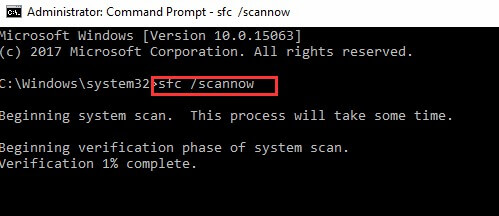
4) Windows will now scan your system for corrupted files and attempt to fix them if found.
5) Type exit and press Enter.
Method #5. Perform System Restore
Advertisement
After attempting each of the aforementioned fixes, if your Windows 10, Windows 8, or Windows 7 machine is still freezing, your Windows may be corrupted. You might need to attempt restoring your operating system in this situation.
Warning:
System reinstallation is a good solution to fix a computer keeps freezing. However it will delete some data on your PC. Therefore we recommend you to back up your data in advance.
Method #6. Take PC to Repair Shop
If none of the above options work, you have no choice but to take your PC to a computer repair shop and allow a computer technician to diagnose and fix the problem.
